PhotoView
Native · macOS & Windows

Your photos,
finally at home.

PhotoView points at a folder on your disk and turns it into a fast, iOS-Photos-style timeline — with tags, duplicate detection, and a QR-code Wi-Fi share that puts the same library on your phone. No cloud, no account, no sync.
Library scale
tested up to 100k items
Formats
HEIC · AVIF · JPEG · MP4
Footprint
one hidden .photoview/
Network
zero outbound calls
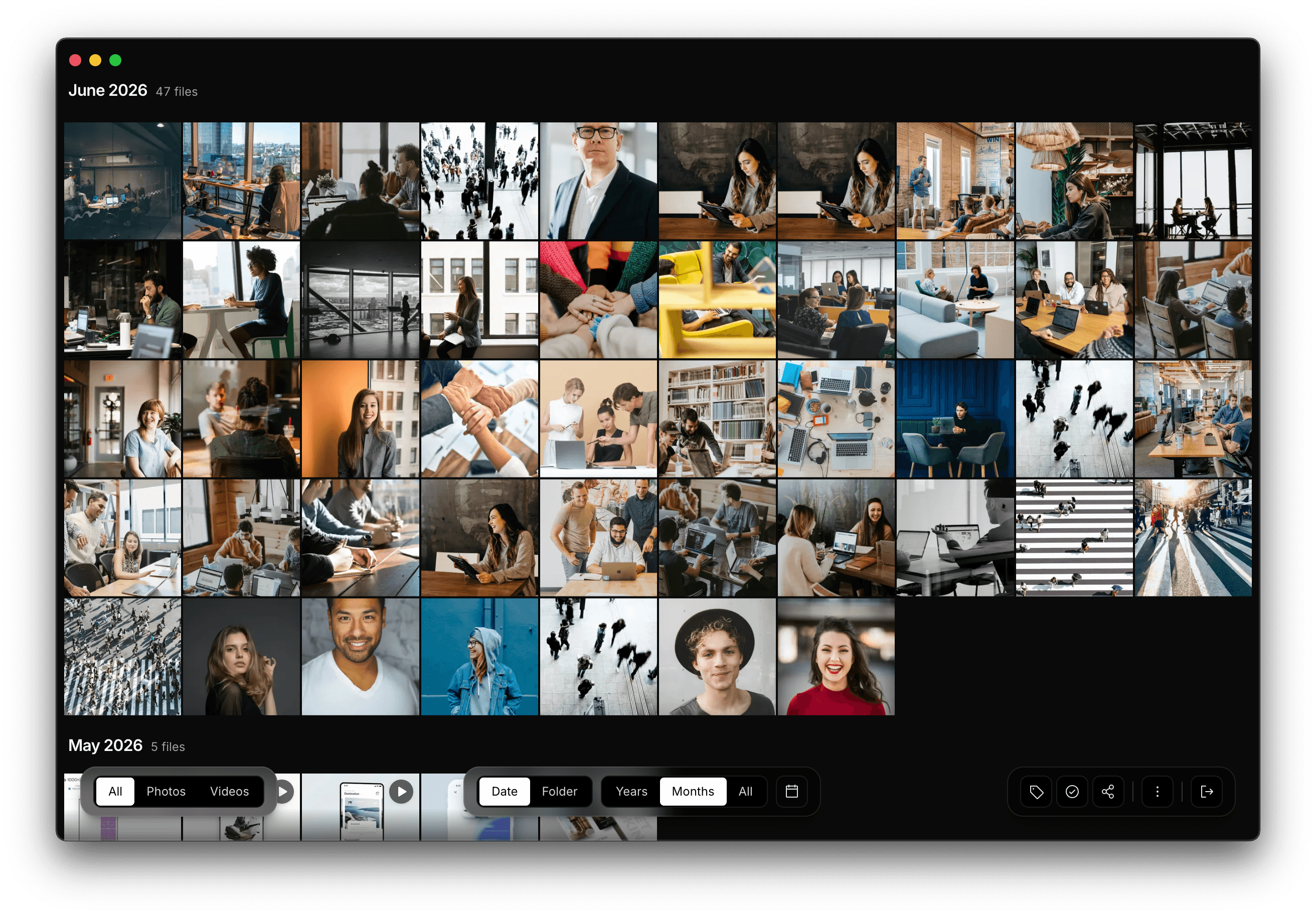
PhotoView timeline grid showing photos grouped by month
The interface

A timeline that scrolls like memory.

Pinch to zoom from a wall of every photo you have, down to a single day. Group by years, months, or days. Pick any frame and open the viewer with EXIF, location, and the rest of the burst all one swipe away.
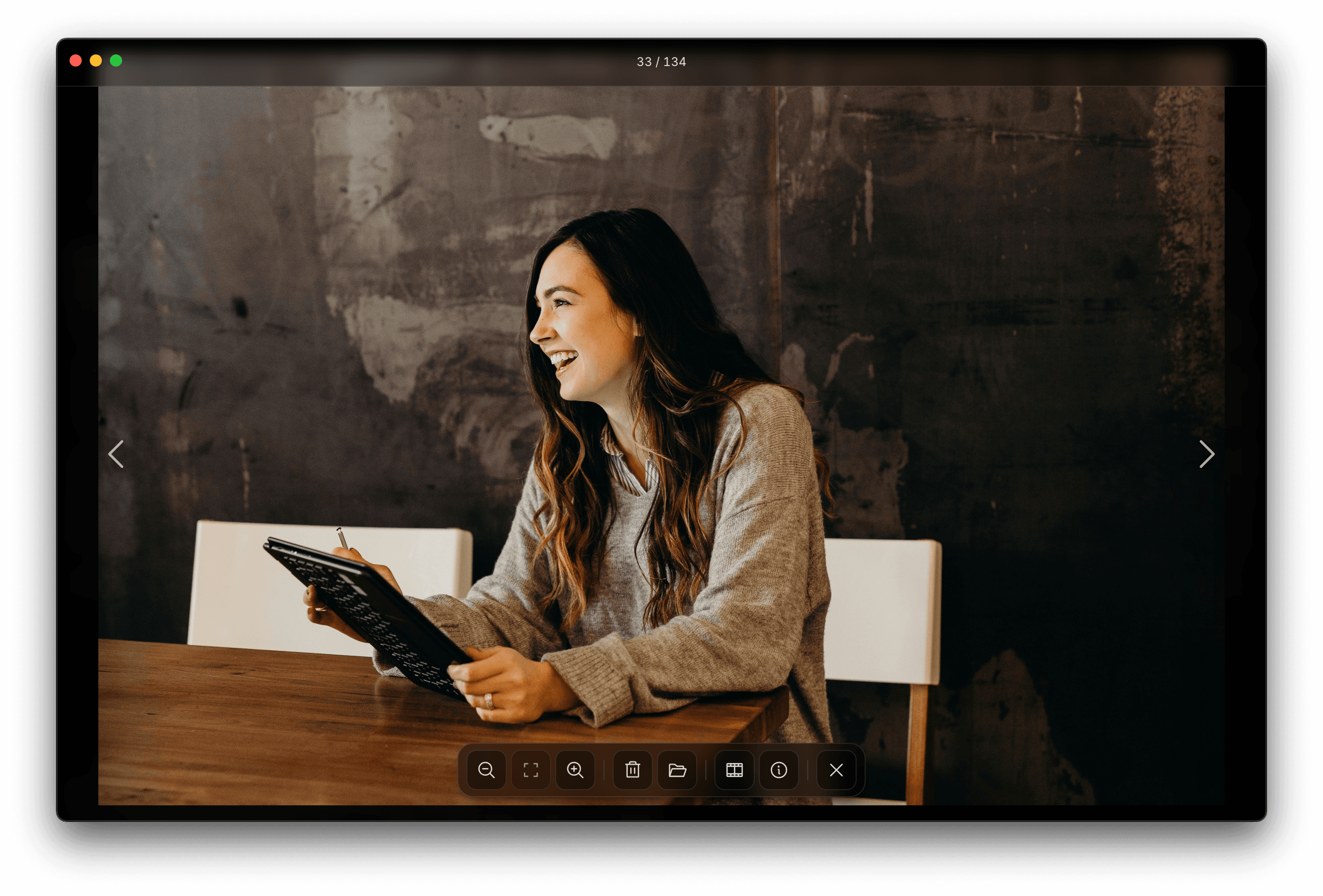
PhotoView fullscreen viewer with navigation arrows and toolbar
01 · Zoom

From a wall of years down to one frame.

A continuous zoom slider in the toolbar moves the grid between Days, Months, and Years. The year picker jumps you to a specific year in one click.

02 · EXIF & file path

Every frame, in context.

Camera, lens, settings, GPS coordinates, and the full path on disk — copyable, and Reveal in Finder is one keystroke away.

03 · Tags, filters, selection

Select a hundred, tag them once.

Range-select with shift, multi-select with cmd, then assign a tag — or trash to the system bin. Right-click any tile for the same actions.

What's inside

Built for a folder, not a service.

PhotoView never moves, renames, or uploads your files. Everything you see — thumbnails, dates, tags, duplicate clusters — is computed locally and stored in a single hidden folder next to your photos.

Local-first

Your files never leave your disk.

No account. No sync. No telemetry. The library, thumbnails, and index live in .photoview/ at the root you picked — bring an external drive to any machine and pick up exactly where you left off.

~/Pictures/Family/
├── 2024-summer/
├── 2025-lisbon/
└── .photoview/
├── index.db
├── thumbs/
└── settings.json
Zero outbound network. Verifiable with Little Snitch.
Two ways to look

Group by Date or by Folder.

The Date axis honors the moment each photo was taken — Days, Months, Years zoom levels. The Folder axis respects how you organized them yourself.

DateFolder
Tags

A label that follows the file.

Multi-select, hit Tag, name it. Filter by tag from the toolbar or right-click.

# Family# Travel# Keepers# To edit# Lisbon-25
Formats

HEIC, AVIF, & the usual suspects.

JPEG, PNG, GIF, WebP, HEIC/HEIF, AVIF, MP4, MOV. RAW lands in v1.1.

HEICAVIFJPEGPNGWebPGIFMP4MOV
Cross-platform

Mac & Windows.

Universal binary on Apple Silicon. One-click installer on Windows. Linux next.

Performance

Virtualized to the row.

Thumbnails encoded as WebP by sharp in a worker pool. The grid renders only what's visible, so 100k items scroll like 100.

Viewer

Filmstrip, info pane, video.

Arrow keys to scrub. I opens EXIF. F toggles the filmstrip. MP4 and MOV play in-place.

Multi-select

Pick a hundred, act on them all.

Hold shift for a range, cmd for individual picks. Then tag, share, or trash the entire selection in one keystroke — right-click works on anything, from one frame to a thousand.
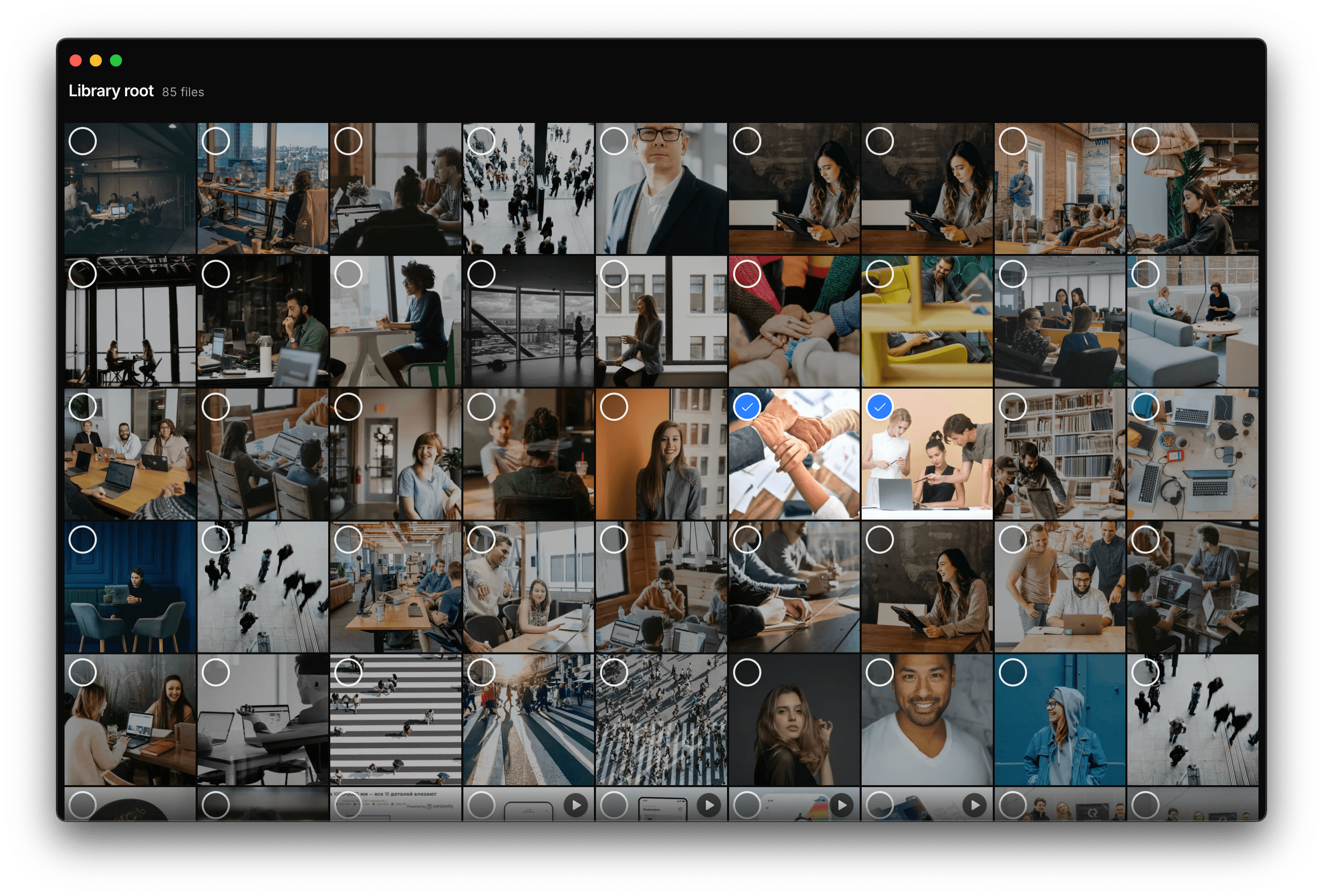
PhotoView grid in selection mode with checkbox overlays on tiles
Share over Wi-Fi

Browse your library from any device on Wi-Fi.

Hit Share, scan the QR code with your phone, and the same timeline opens in a browser tab — read-only, on your local network only. No cloud, no account, no upload. The server stops the moment you close the dialog.

  • QR or short URLpoint a camera, or paste it into anyone's browser on the same network.
  • Read-onlyvisitors can browse and view, never delete, rename, or download originals.
  • Mobile-optimizeda dedicated phone layout with the same date grouping and full-screen viewer.
  • Stops with the windowclosing the share dialog tears the server down. Nothing lingers.
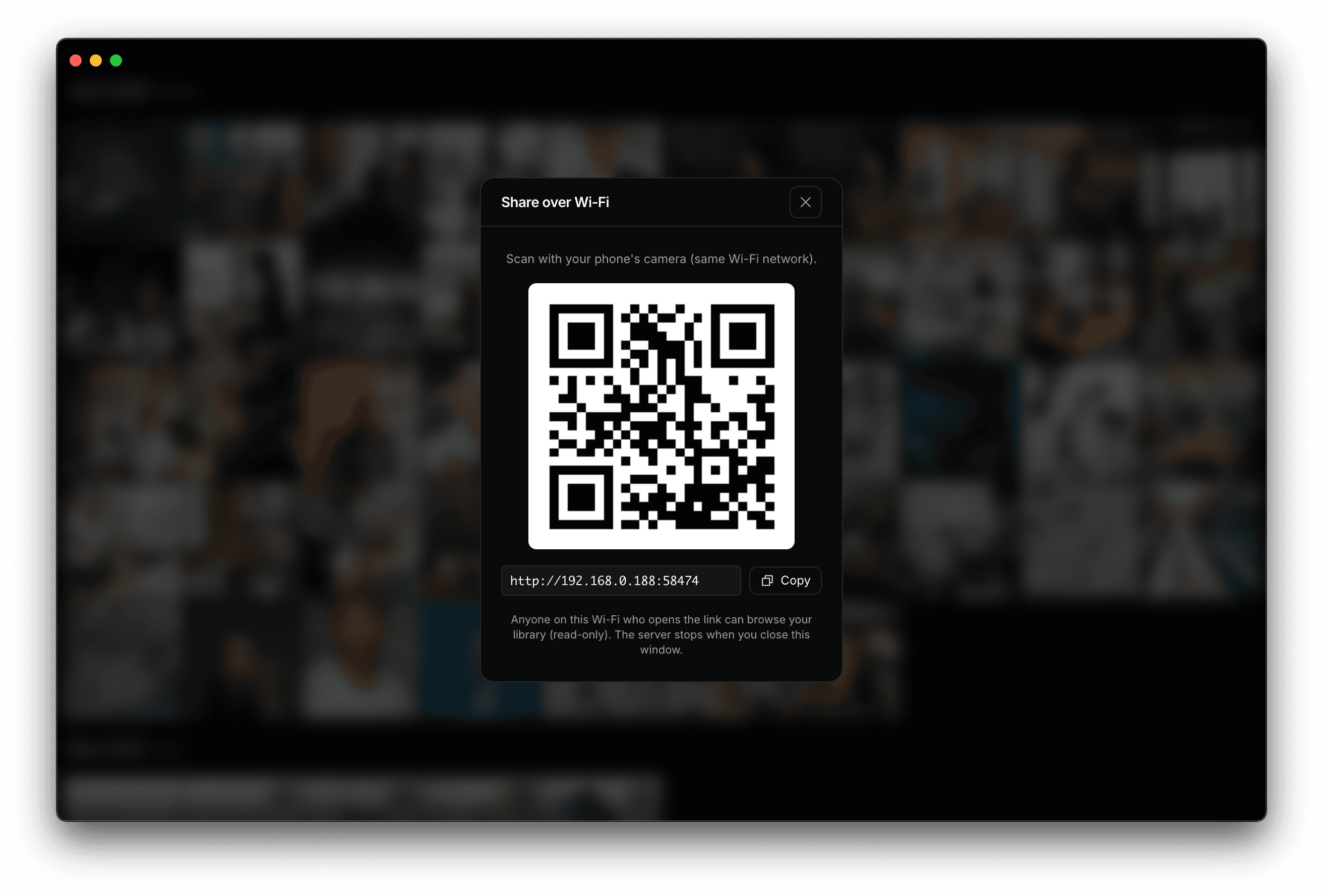
PhotoView Share over Wi-Fi dialog with QR code
Reclaim disk

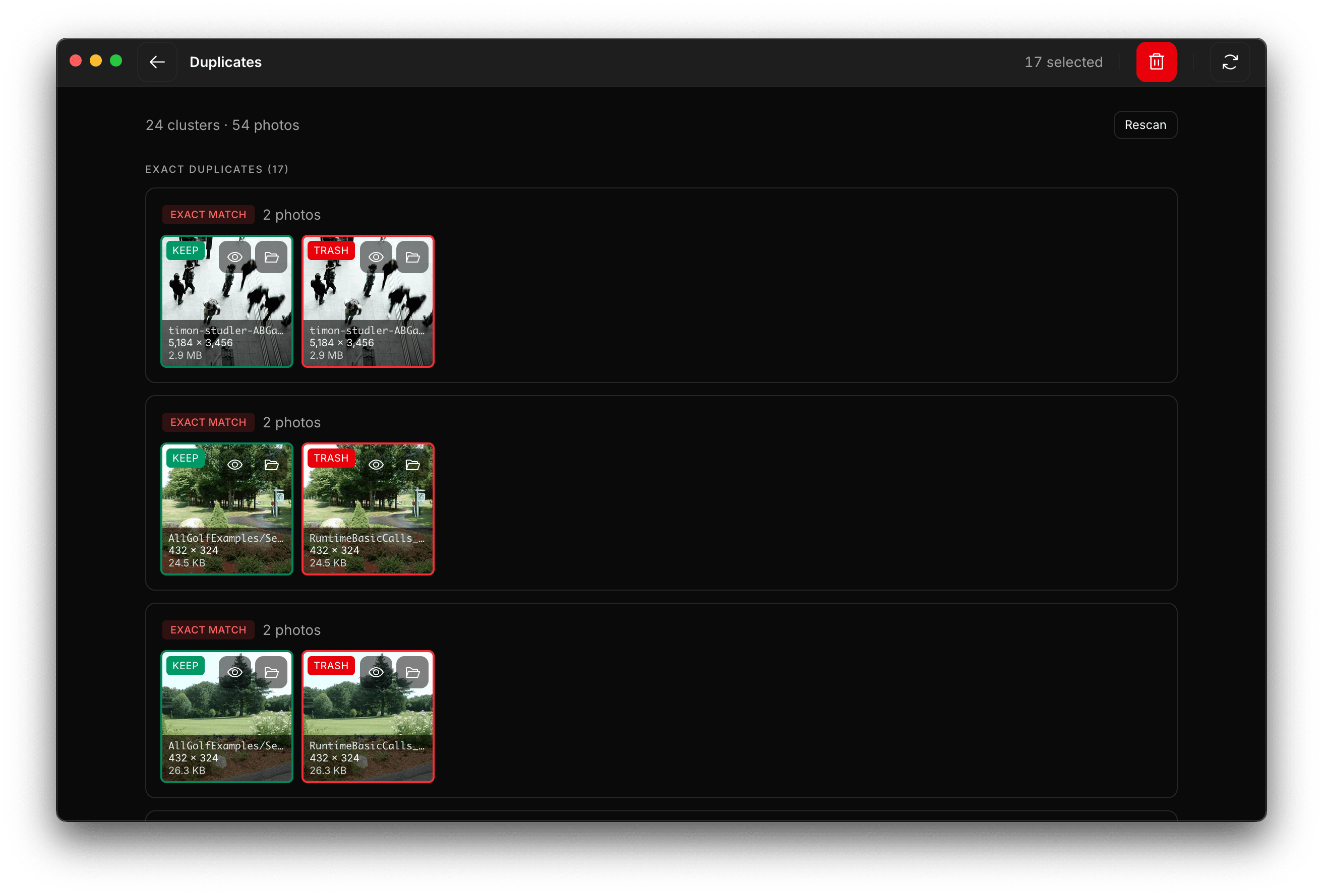
Find the duplicates you forgot about.

PhotoView runs two passes over your library: a SHA-256 exact match, and a perceptual hash for near-duplicates — the same photo at different resolutions, that screenshot of a screenshot, the export you forgot to delete.

  • Exact byte-identical files across folders and drives.
  • Perceptual pHash clusters 1:1 resizes, crops, and re-exports.
  • Safe by default review every cluster before anything is moved or trashed.
  • Recoverable deletes go to your system Trash, never bypass it.
14.2 GB
average recovered on a 50k-photo library
PhotoView Duplicates view with exact-match clusters and KEEP/TRASH controls
Free

Try it on your photos.

Point PhotoView at a folder and let the indexer run once. On most libraries you'll be scrolling a timeline in under two minutes.

macOS · Apple Silicon
11+ · M1/M2/M3
Download .dmg
macOS · Intel
11+ · x64
Download .dmg
First launch on macOS?

PhotoView is free, we don't sell anything, and Apple's notarization costs $99/year — so we haven't paid into it yet. macOS warns the first time you open the app. Approve it once for this app — no need to disable security globally.

  1. Move PhotoView.app to your Applications folder, then double-click it once. macOS will show a warning — close the dialog.
  2. Open the Apple menu → System Settings → Privacy & Security, scroll down, and click Open Anyway next to PhotoView.
  3. Confirm at the prompt. macOS remembers the exception, and every future launch opens normally.

The Open Anyway button only appears for about an hour after the blocked launch attempt.

Windows
10 / 11 · x64
Download .exe
Linux
AppImage · coming soon
Notify me

Not yet notarized by Apple — macOS may warn on first launch. The FAQ has a one-minute fix. SHA-256 checksums on the release page.

Questions

The fine print.

Things people ask before they let new software touch a photo library that took them ten years to build.

  • Does PhotoView move or rename my files?

    No. PhotoView is strictly read-only against your photo files. The only thing it writes is a hidden .photoview/ folder at the root you pick — containing the index, thumbnails, and your settings.

  • What happens if I move the library to another drive?

    Because the index lives next to your photos, you can move the entire folder (or copy it to another machine) and PhotoView will open it exactly as before. No re-import.

  • Is anything sent over the network?

    Nothing. No telemetry, no analytics, no cloud sync, no AI service calls. Verified with Little Snitch and outbound firewall rules. The only network activity is the one-time update check, which you can disable.

  • What about HEIC / AVIF / RAW?

    HEIC, HEIF, and AVIF are decoded natively on both macOS and Windows. The full supported list is JPEG, PNG, GIF, WebP, HEIC/HEIF, AVIF, MP4, MOV. RAW (CR3, ARW, NEF, DNG) is on the v1.1 roadmap.

  • How does Share over Wi-Fi work?

    It starts a tiny HTTP server bound to your local network only, generates a QR code with the URL, and serves a read-only browser-optimized view of the same timeline. Anyone on the same Wi-Fi can scan it; nothing is exposed to the internet. The server stops the moment you close the dialog.

  • Can people delete or download my photos from the Wi-Fi share?

    No. The share is strictly read-only — visitors can browse and view, but cannot delete, rename, tag, or download original files.

  • How big can my library be?

    We target 10k–100k items as the comfortable range. The indexer streams, so larger libraries work — they just take longer for the first pass.

  • What's the pricing going to look like?

    Free for now. We plan a one-time purchase down the road, with all future updates included on the version you bought. No subscription.

  • macOS says PhotoView "can't be opened" — what do I do?

    PhotoView is free, we don't sell anything, and Apple's notarization service costs $99/year — so we haven't paid into it yet. That means macOS warns on the very first launch. The supported per-app fix takes about a minute: 1) Move PhotoView.app to Applications and double-click it once — close the warning dialog when it appears. 2) Open Apple menu → System Settings → Privacy & Security, scroll down, and click Open Anyway next to PhotoView. 3) Confirm at the prompt. macOS remembers the exception and every future launch opens normally. The Open Anyway button only appears for about an hour after the blocked attempt, so do this right after step 1. Don't disable Gatekeeper globally — approve per app instead.